Detailed PreOrdering Instructions
1.
|
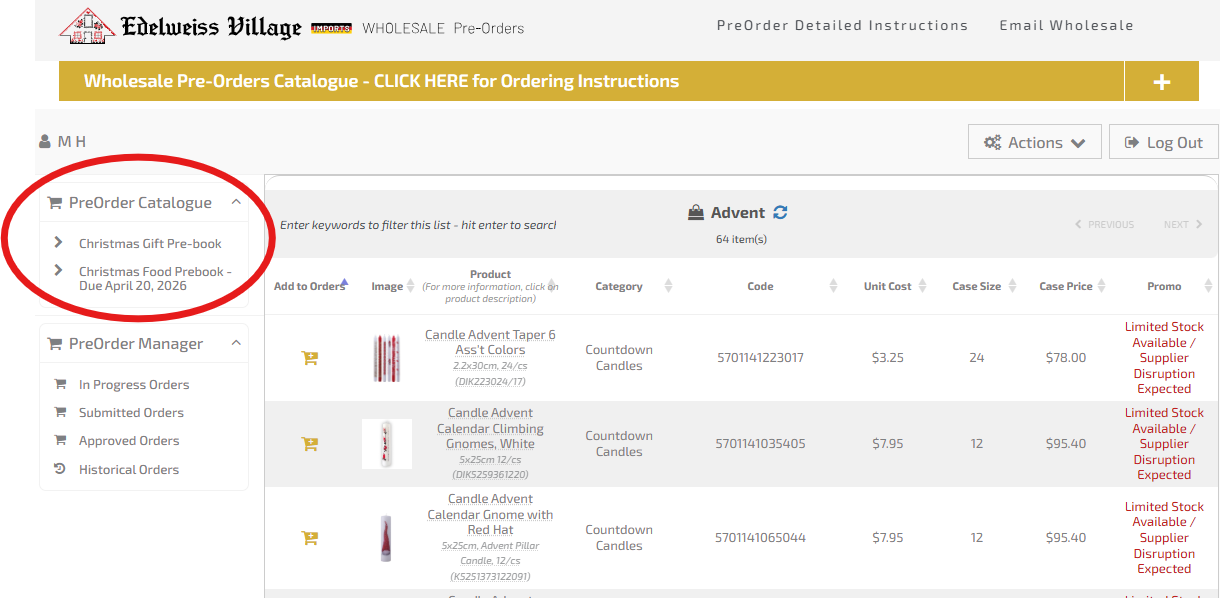
Select the catalogue you would like to pre-order from - side panel [far left side of screen]
|
|
2.
|
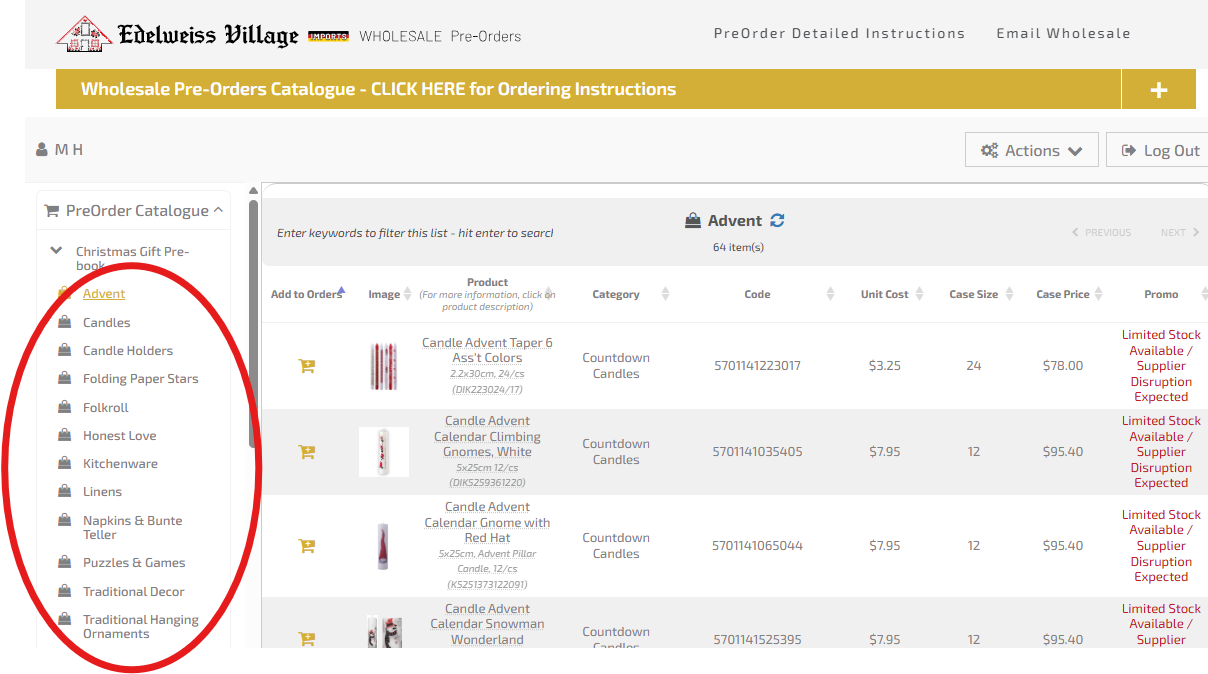
Then select which category of products within the catelogue you would like to browse
|
|
3.
|
You can search within the category or just scroll to find the items you would like to preorder
|
|
4.
|
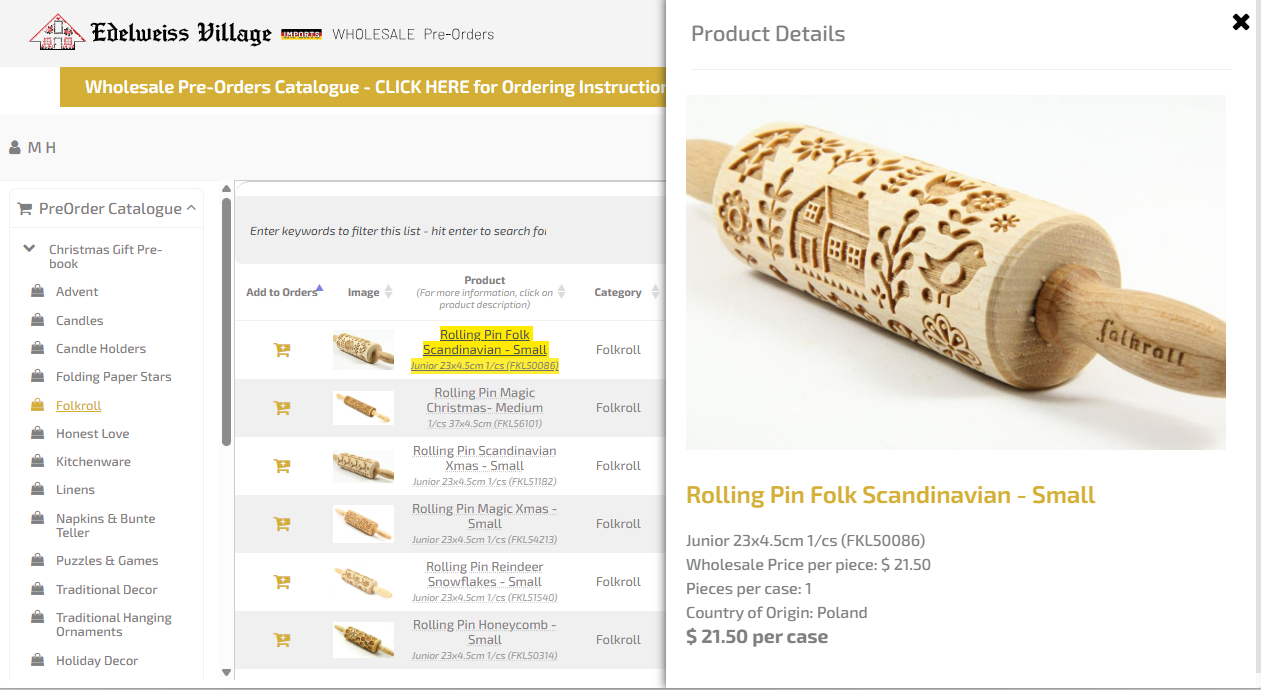
To see more information about product[s] or to see a larger image, click on the product description. You do not need to exit out of the product details window each time. You do not need to exit out of the product details window each time—you can select a different item to view from the product list on the right.
|
|
5.
|
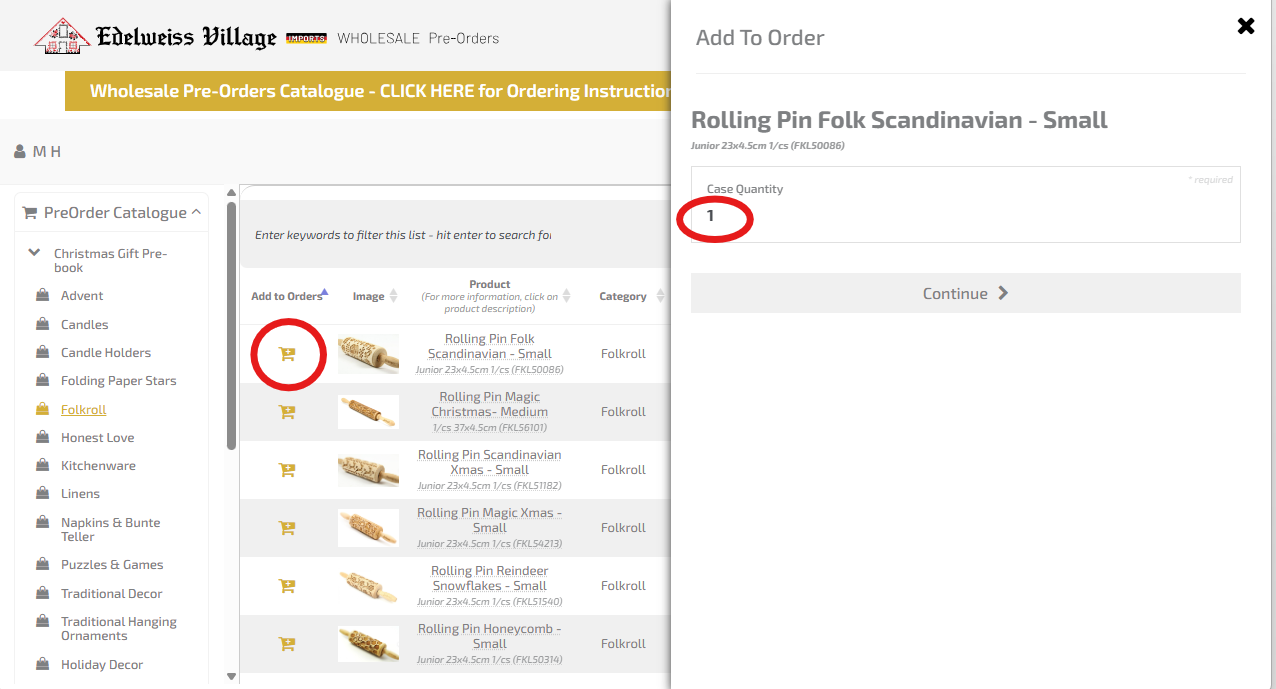
When you find the item[s] that you wish to preorder, click the yellow shopping cart icon next to it [left side of products screen]
Add the Case Quantity you wish to order in the text field and select continue.
|
 |
6.
|
Continue adding items to your preorder
|
|
7.
|
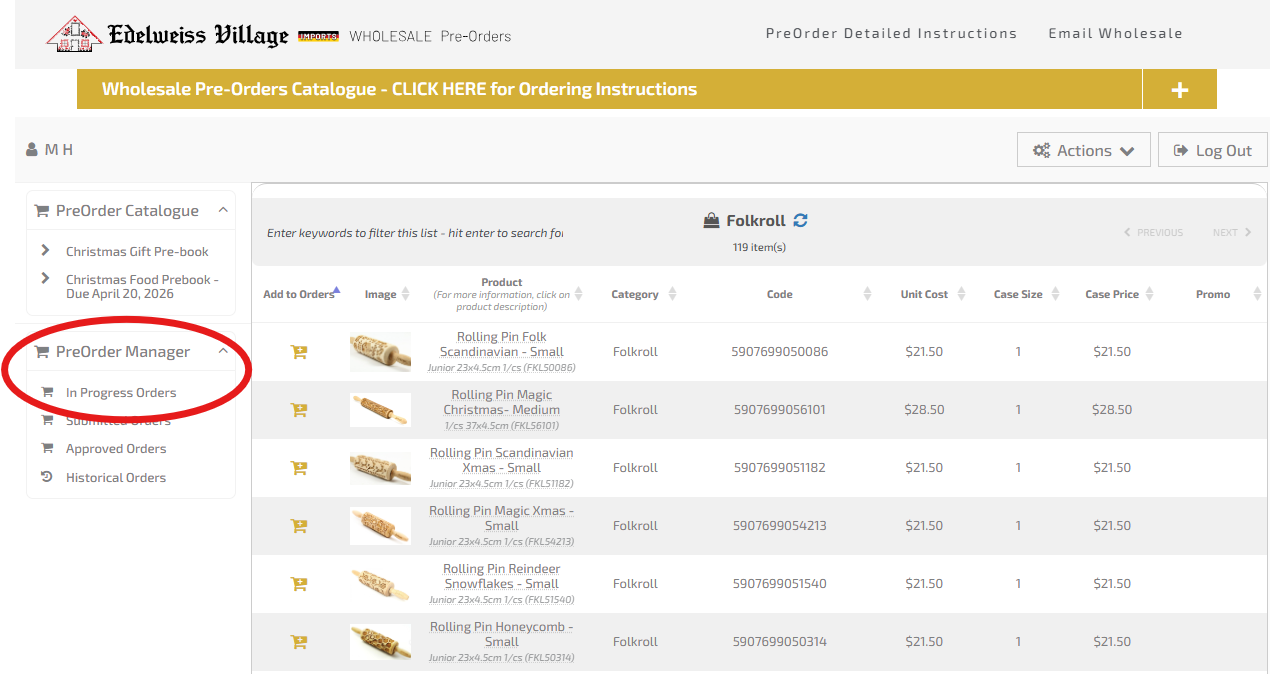
When you are ready to view your preoder, navigate to the preorder manager [lower section - far left side of screen] and select "In Progress Orders"
|
|
8.
|
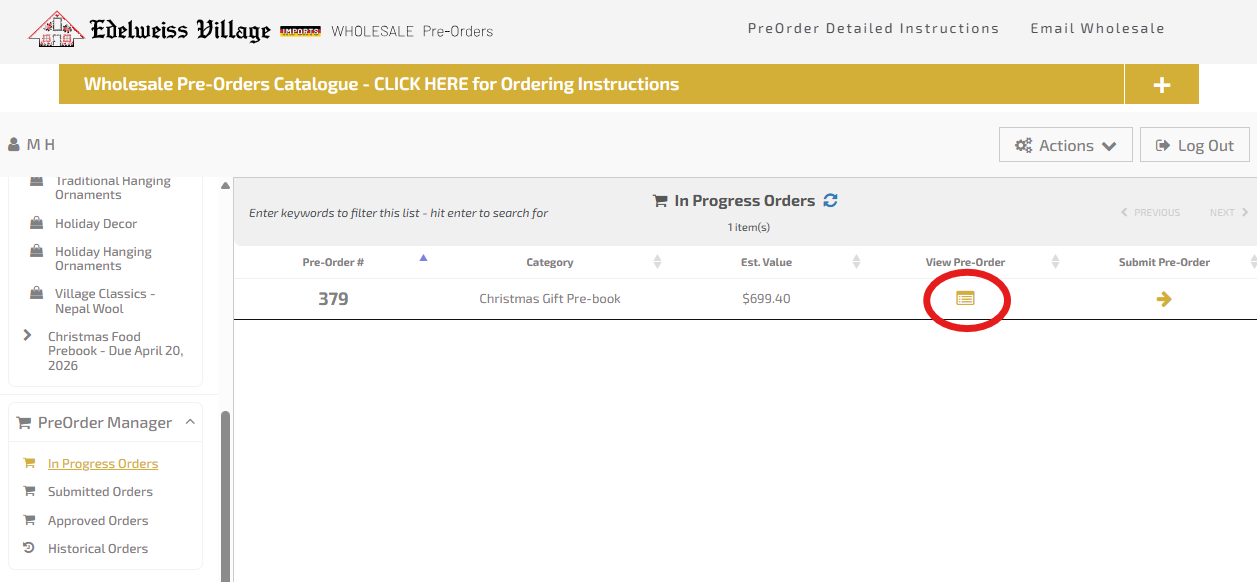
Select "View PreOrder". You can update quantities here.
If there are more items you wish to add to your preorder, return to the catalogue and continue adding.
|
 |
9.
|
Your preorder will be saved so you can come back and edit as many times as you like
|
|
10.
|
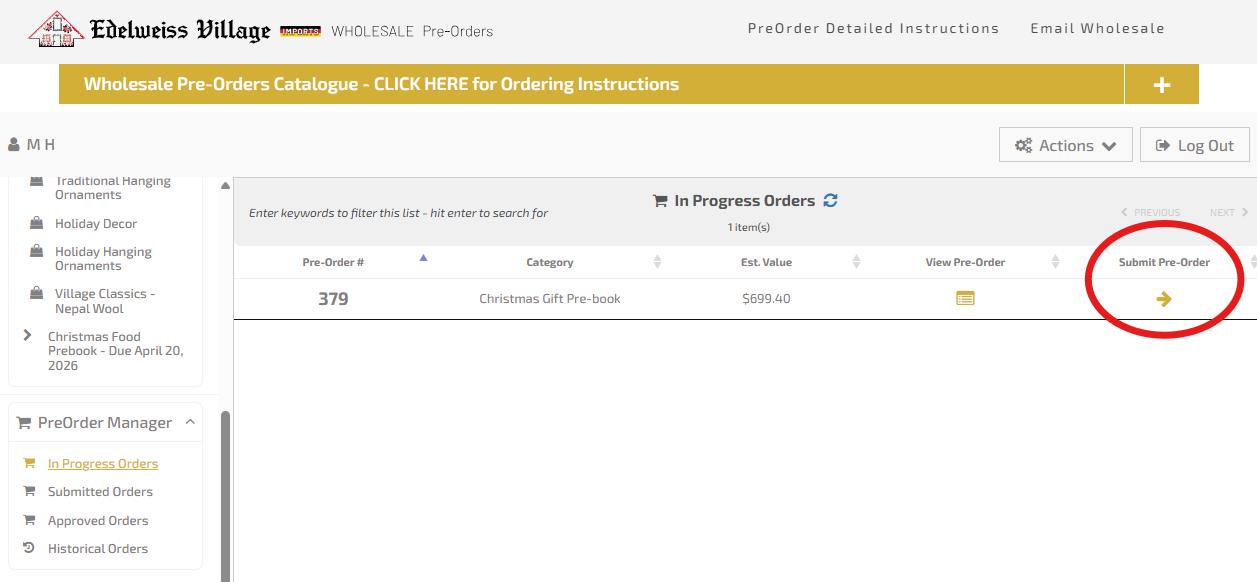
When you have completed adding items, click on the gold "Submit PreOrder" button. Your order will move to "Submitted Orders".
|
|
11.
|
If you remember something you wish to add, after your order has been submitted, please contact the Edelweiss wholesale team.
-
-
If your order has not been "approved" yet, Edelweiss or your Regional Sales Representative will be able to either update the order for you OR push it back to "new" so that you can make edits.
-
If your order has already been approved, you will need to create a new preorder. You can do this by simply going to the catelogue and selecting items - a new preorder will automatically be created
|
 |
12.
|
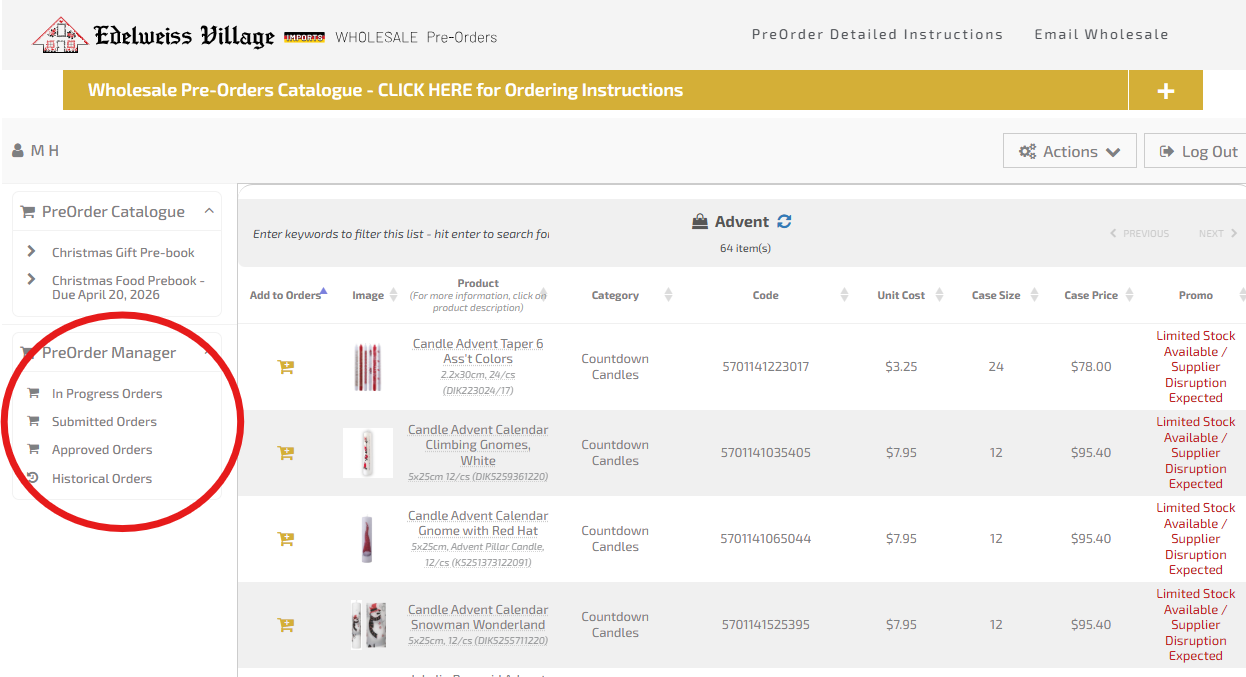
When your preorder has been approved by the Edelweiss team, it will move the approved menu - you will be able to view but not update.
|
|
13.
|
When your preorder has been converted to a real order and is being processed, it will move to historical - you will be able to reference for future orders but you will not be able to make updates.
|
|
To go back to the Pre-order Catalogue Click Here or the logo at the top left.
**If you need further assistance, please call (403)-282-6600 ext. 3, or email